XRDP with LXDE on Ubuntu Server 18.04
If you want to connect with Remote Desktop to your Ubuntu 18.04 Server, a good way to do so is by using XRDP. If you are like me and run a server with very little RAM you also want to use a Desktop Environment that uses as little memory as possible. LXDE is a very lightweight Desktop Environment, so I will be using that one.
Install required packages
First of all update the package lists with this command
sudo apt updateThen install LXDE
sudo apt install lxde
This might take a while as LXDE is quite big to install if you don’t already have a desktop environment installed.
Then install XRDP
sudo apt install xrdp
Configure XRDP to use LXDE
Open up /etc/xrdp/startwm.sh. I use the nano text editor here
sudo nano /etc/xrdp/startwm.shThen add this all the way at the end of the file
lxsession -s LXDE -e LXDE
Press ctrl+x, y and enter to save.
Disable GUI on boot
If you run a headless server you might want to disable booting into the graphical login screen, to make sure it does not use any extra memory. You can disable the GUI on boot this with this command.
sudo systemctl set-default multi-user.targetAnd use this command to enable it again if you want to.
sudo systemctl set-default graphical.target
Disable the GUI if you run a headless server.
Connect with RDP
Open up Windows Remote Desktop Connection and enter the address of the computer you’re trying to connect to.
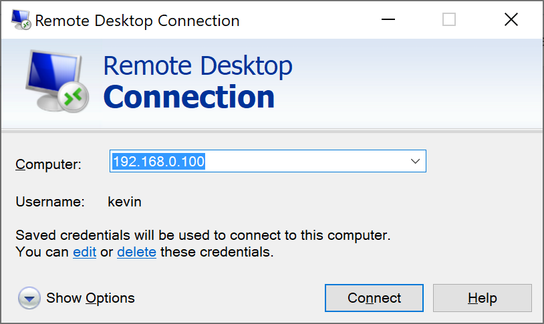
Enter the IP or name of the computer you are trying to connect to.
Connect and a screen will show where you need to enter your login credentials. Select Xorg from the list and enter your username and password, press OK and you should be seeing the LXDE desktop environment.
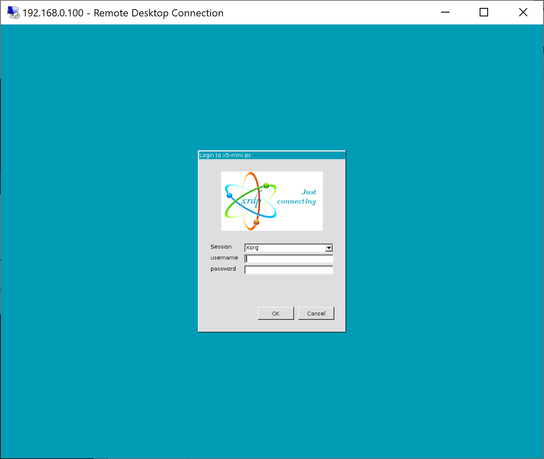
Enter your login details and press OK
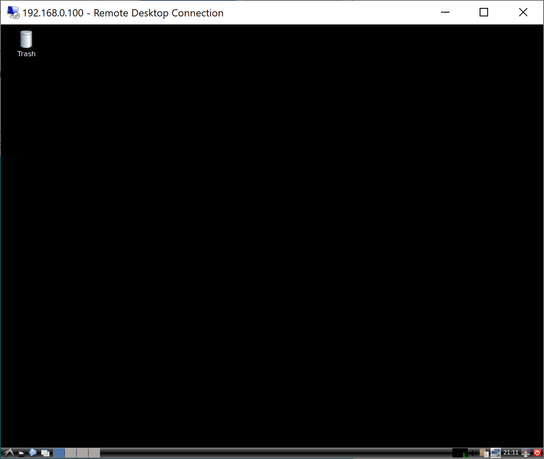
Successfully connected!
Thank you so much! This worked perfectly well for my Ubuntu 18.04 LTS server.
Is there a way to change the default xrdp resolution?
Hi Mirror, I think the client (in my case Windows Remote Desktop Connection) decides what resolution will be used. You can change the resolution in the display settings:
// Your email address will not be published.